 Download via Ko-fi
This version of the Wurst Hacked Client is available for Minecraft 26.3.
Changelog
-
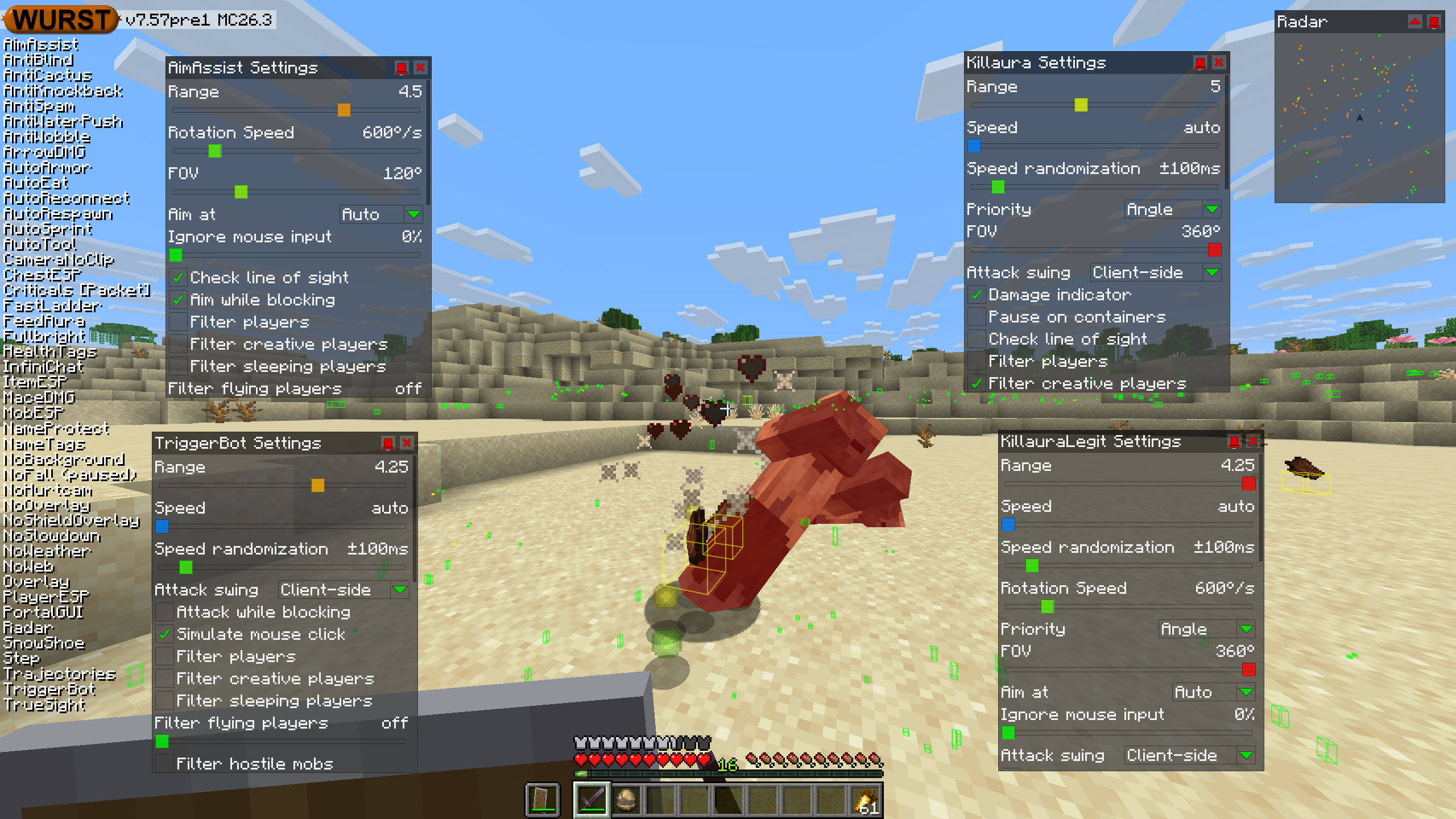
Improved Vulcan and NoCheat+ bypasses of AimAssist, KillauraLegit and TriggerBot.
-
Added an “Aim at” setting to KillauraLegit (same as in AimAssist).
-
Added an “Ignore mouse input” slider to KillauraLegit (same as in AimAssist).
-
AimAssist and KillauraLegit now aim much more smoothly and much more precisely.
-
AutoSword now selects a weapon as soon as Killaura finds a target and keeps it selected between attacks.
-
Killaura’s damage indicator now updates more quickly when the target changes between attacks.
-
AutoFish+KillauraLegit now disable each other, just like AutoFish+AimAssist do, to avoid them fighting over where to aim.
-
KillauraLegit no longer tries to attack while you are blocking with a shield (impossible in vanilla, not legit) but keeps aiming at the target during that time.
-
AimAssist’s “Aim while blocking” setting is now enabled by default.
-
“Aim at: Auto” and “Aim at: Feet” no longer aim so close to the edge of the target’s hitbox, resulting in fewer missed attacks.
-
Fixed AimAssist and KillauraLegit aiming more slowly than the “Rotation speed” setting would suggest.
-
Fixed AimAssist and KillauraLegit aiming very slowly when using a low mouse sensitivity setting. (#1001, #1141, /d/667, /d/783)
-
Known issue: AimAssist and KillauraLegit currently resist manual mouse movements much more strongly than they used to, even at 0% “Ignore mouse input”.
-
Fixed Killaura dealing very little damage on its first attack after AutoSword switches weapons when using “Speed: auto”.
-
Fixed Killaura attacking slightly later than necessary when using “Speed: auto”.
-
Fixed Killaura’s damage indicator staying visible while paused on containers.
-
Fixed all FOV sliders in Wurst doing their math wrong, resulting in increasingly wrong angles as you get closer to looking straight up/down.
-
All FOV sliders now have the tooltip explaining that it stands for Field Of View.
-
Fixed some edge cases where AimAssist could get stuck wobbling its aim back and forth between two positions that both miss the target’s hitbox.
Included Features
Default Keybinds (14)
These are the default keybinds when you first install Wurst. All of them are fully customizable!
- B → FastPlace & FastBreak
- C → Fullbright
- G → Flight
- ; → SpeedNuker
- H → /home
- J → Jesus
- K → MultiAura
- N → Nuker
- R → Killaura
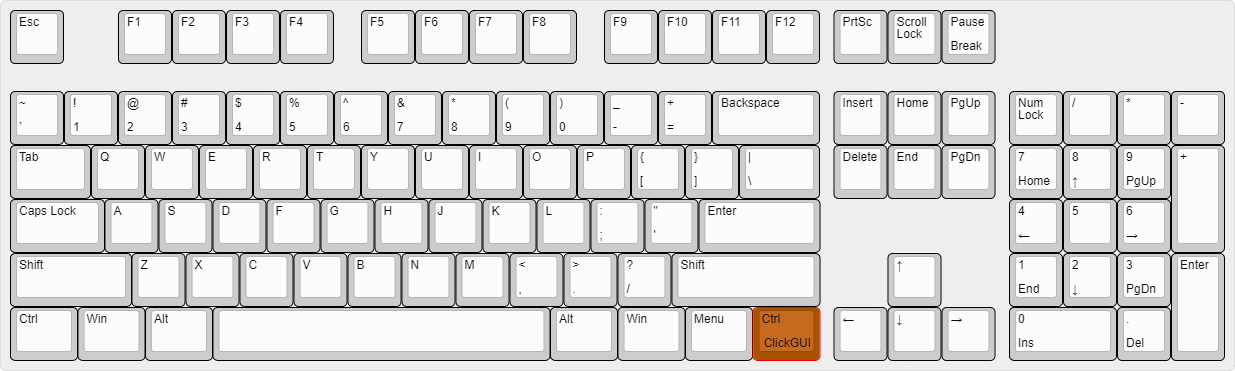
- Right CTRL → ClickGUI
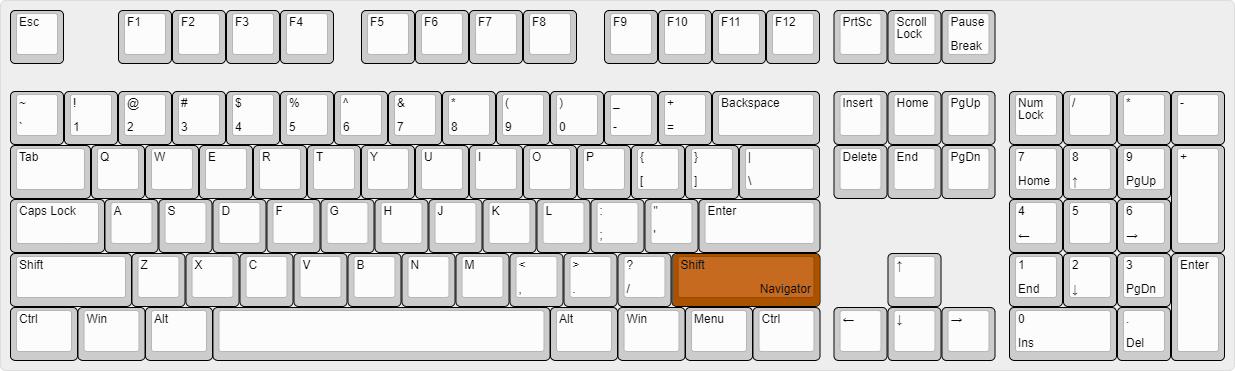
- Right SHIFT → Navigator
- U → Freecam
- X → X-Ray
- Y → Sneak
GUIs (3)
Wurst has more than just one GUI. You can choose whichever one you like best.
ClickGUI
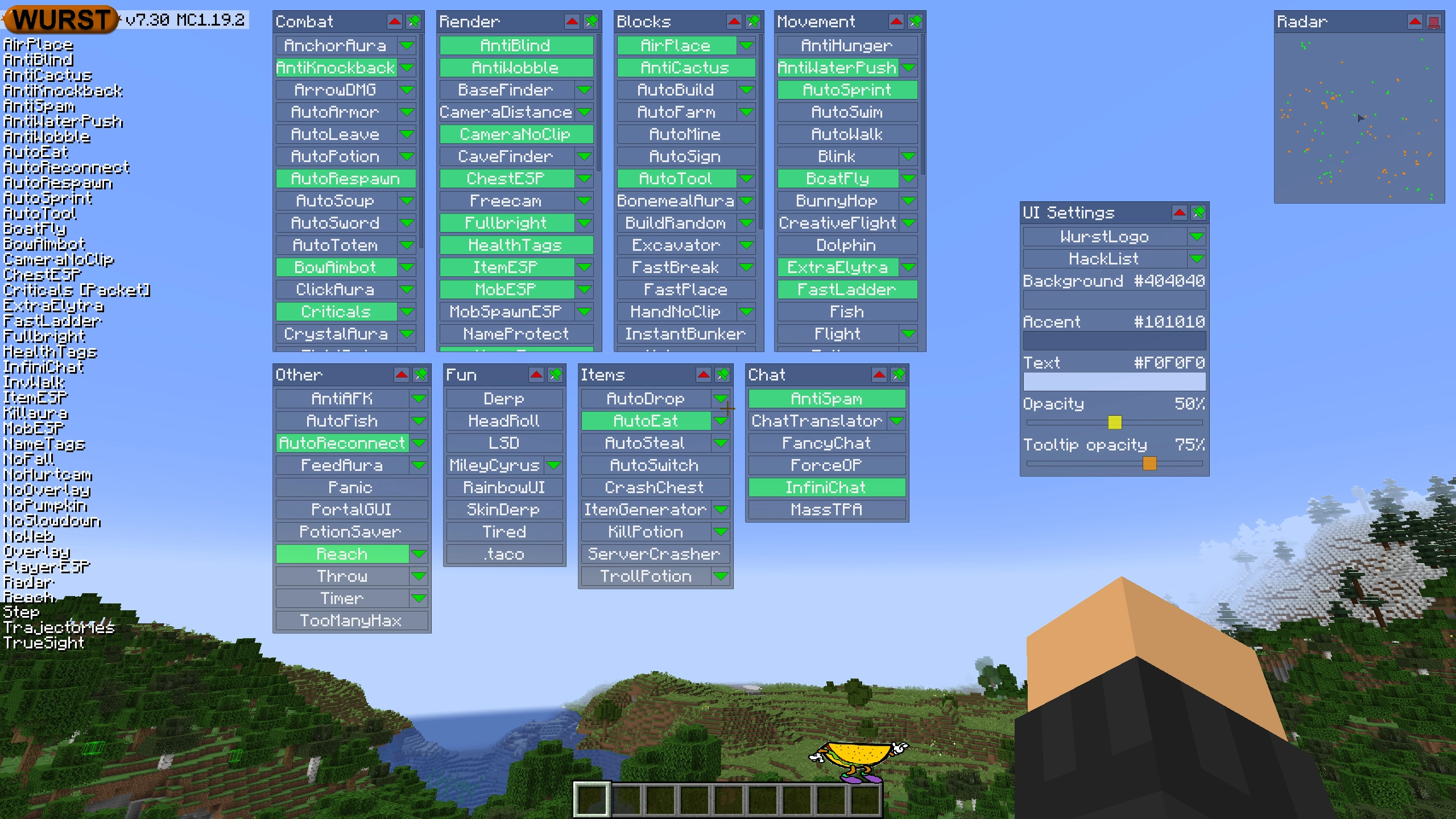
ClickGUI opens with the Right CTRL key. When opened, it displays a window for each category, which then contains a list of every feature in that category.
Navigator
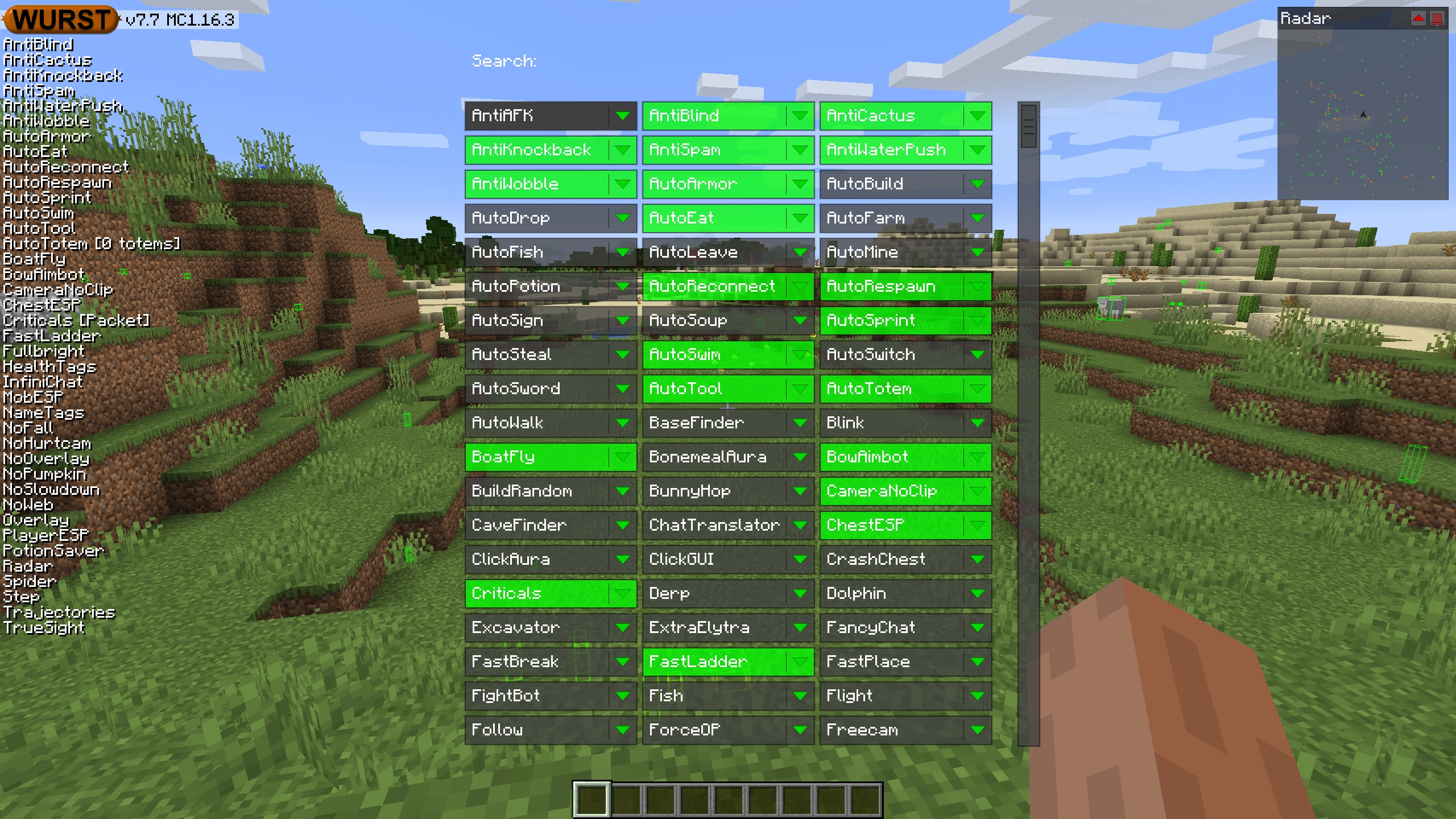
Navigator opens with the Right Shift key. When opened, it displays a searchable list of every feature in Wurst.
TabGUI
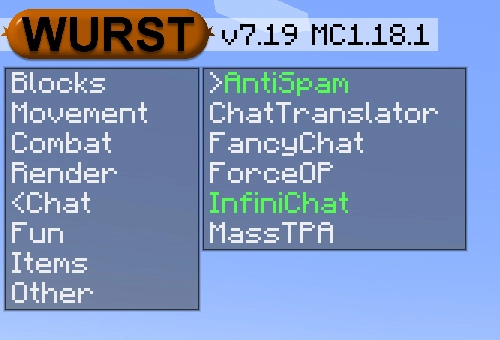
TabGUI does not have a default keybind. You can enable it by opening the Navigator GUI and searching for "TabGUI" (don't worry, you only need to do this once).
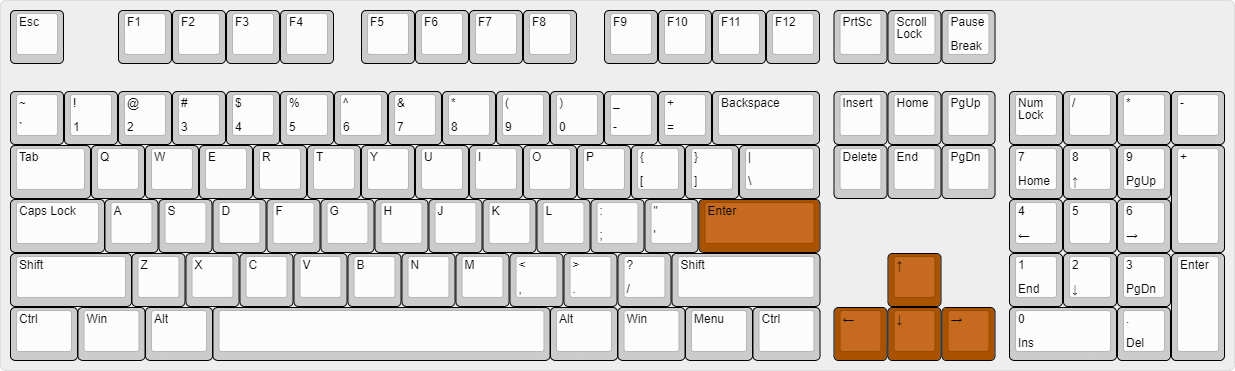
Once enabled, you can use TabGUI with the Arrow Keys to change the selection and Enter to toggle the selected feature.
Supported Languages (15)
Translations are unfinished and thus disabled by default. Go to Wurst Options → Translations to enable them.
- Chinese (Simplified/Mainland)
- Chinese (Traditional/Taiwan)
- Chinese (Cantonese/Hong Kong)
- Czech
- English (US)
- French
- German
- Italian
- Japanese
- Korean
- Polish
- Romanian
- Russian
- Turkish
- Ukrainian