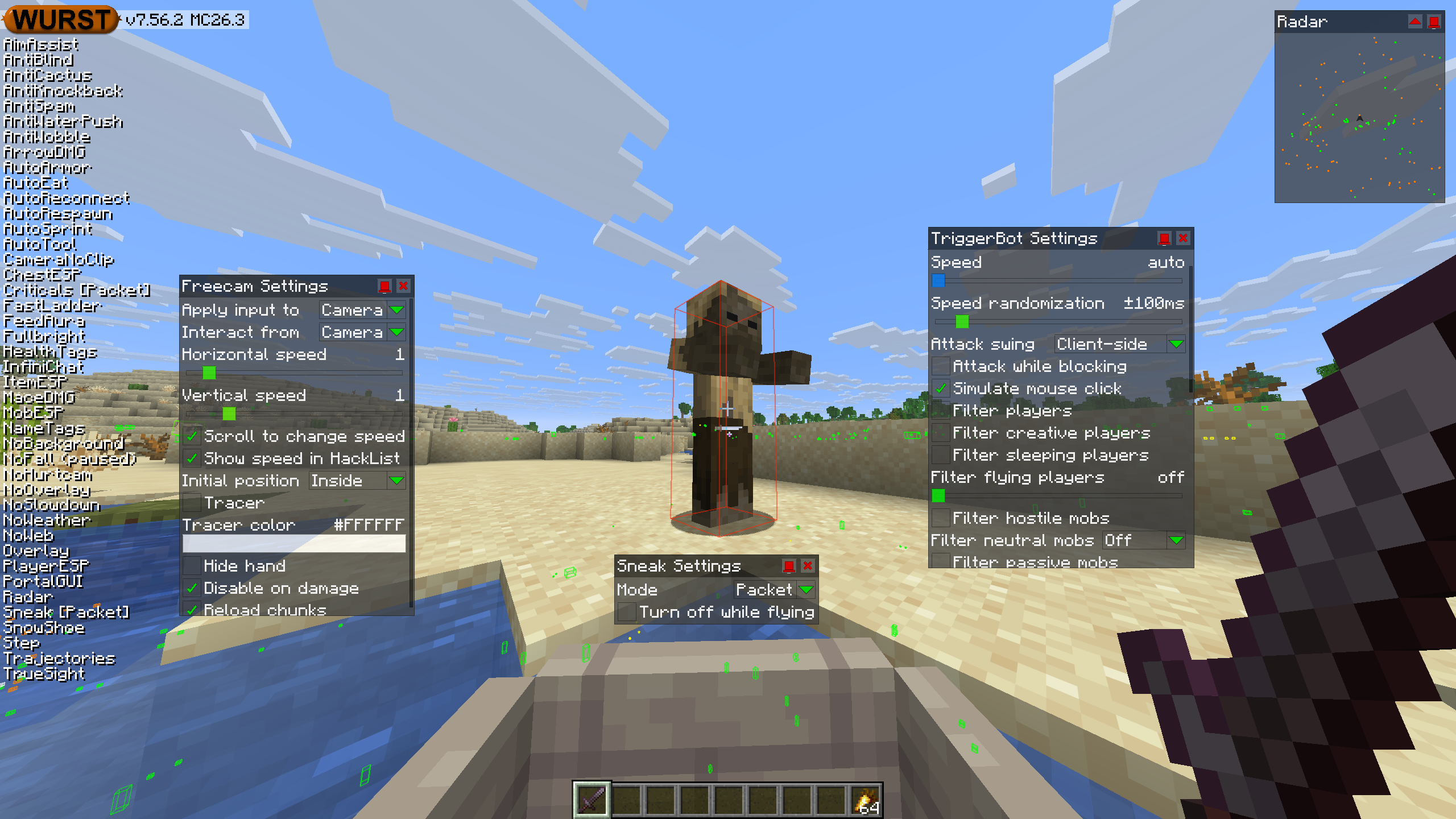
This version of the Wurst Hacked Client is available for Minecraft .
Changelog
-
Fixed AimAssist, FeedAura, Killaura, and KillauraLegit aiming at slightly outdated coordinates when you or the target is moving.
-
HighJump’s Height setting no longer becomes very inaccurate at higher values.
-
Changed various mixins to no longer override vanilla methods for better compatibility with other mods.
-
Fixed TriggerBot with “Simulate mouse click” enabled leaving the attack button held down while you’re in a vehicle.
-
Fixed AutoSword under-estimating mace damage.
-
Fixed AutoArmor selecting zero-armor items (e.g. carved pumpkins) if your base armor is set higher than normal.
-
Fixed a bunch of different issues with AutoArmor and AutoSword when you have custom armor/weapon items from commands or datapacks.
-
Fixed Freecam in “Apply input to: Camera” mode leaking input packets, making you dismount vehicles and move minecarts when you’re just trying to move the camera. (Minecraft 26.3 and later versions only)
-
You can now take panorama screenshots while in Freecam. (/d/1754)
-
Fixed Sneak’s Packet mode no longer doing anything (since Minecraft 25w16a / 1.21.6). (#1163)
-
Fixed TP-Aura waiting for the attack cooldown even when it’s Speed slider isn’t set to “auto”.
-
Fixed a crash when disconnecting from a server while NameProtect is enabled. (/d/1764)
Included Features
Default Keybinds (14)
These are the default keybinds when you first install Wurst. All of them are fully customizable!
- B → FastPlace & FastBreak
- C → Fullbright
- G → Flight
- ; → SpeedNuker
- H → /home
- J → Jesus
- K → MultiAura
- N → Nuker
- R → Killaura
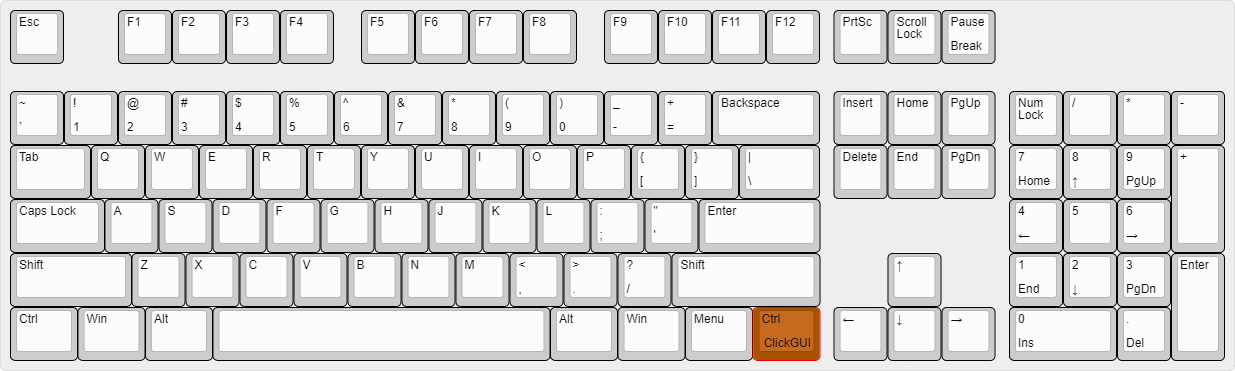
- Right CTRL → ClickGUI
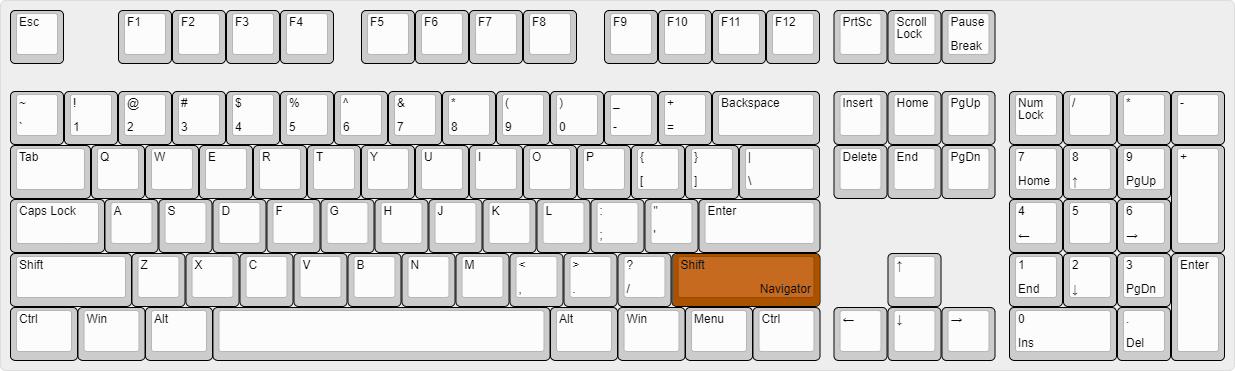
- Right SHIFT → Navigator
- U → Freecam
- X → X-Ray
- Y → Sneak
GUIs (3)
Wurst has more than just one GUI. You can choose whichever one you like best.
ClickGUI
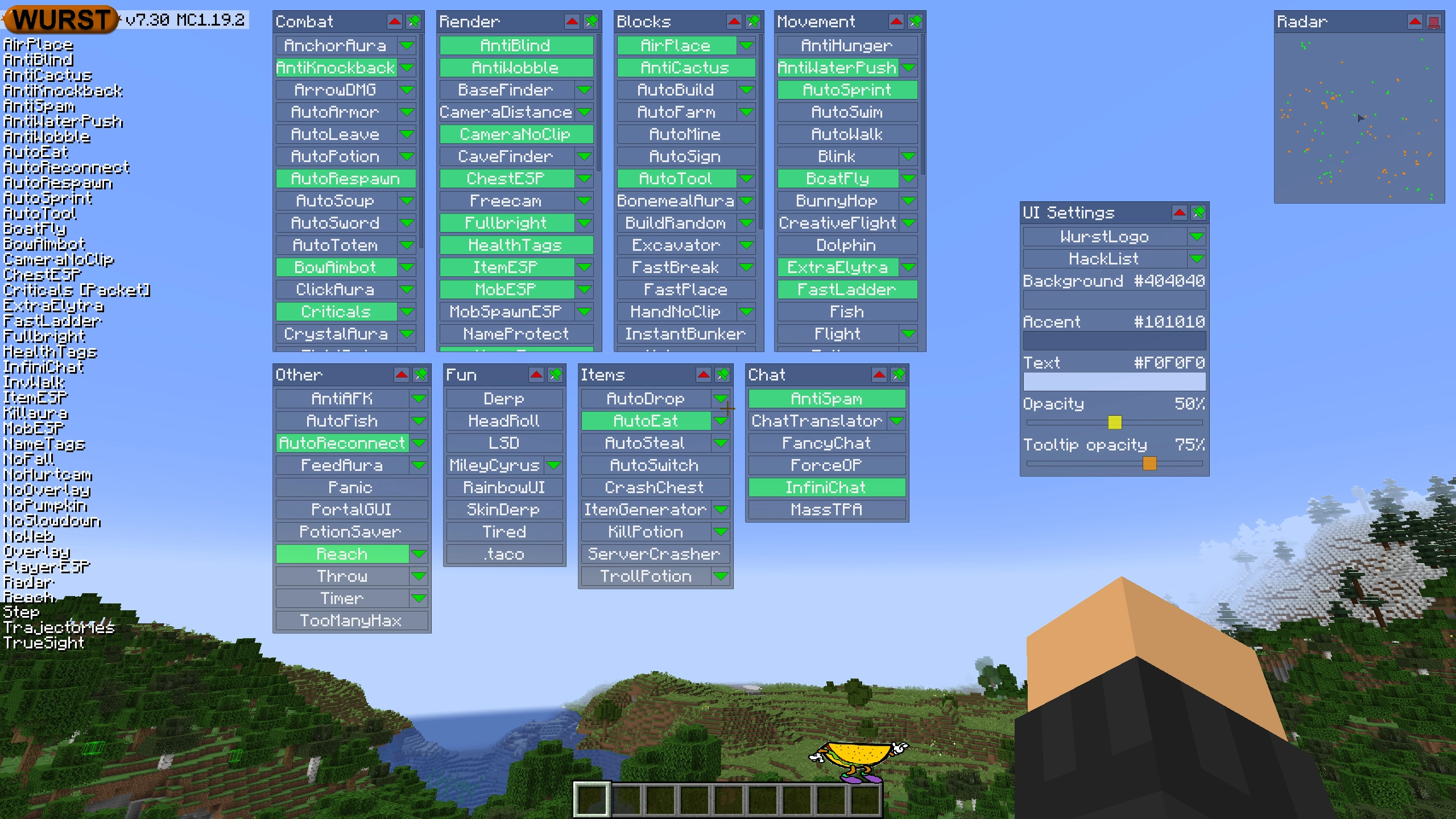
ClickGUI opens with the Right CTRL key. When opened, it displays a window for each category, which then contains a list of every feature in that category.
Navigator
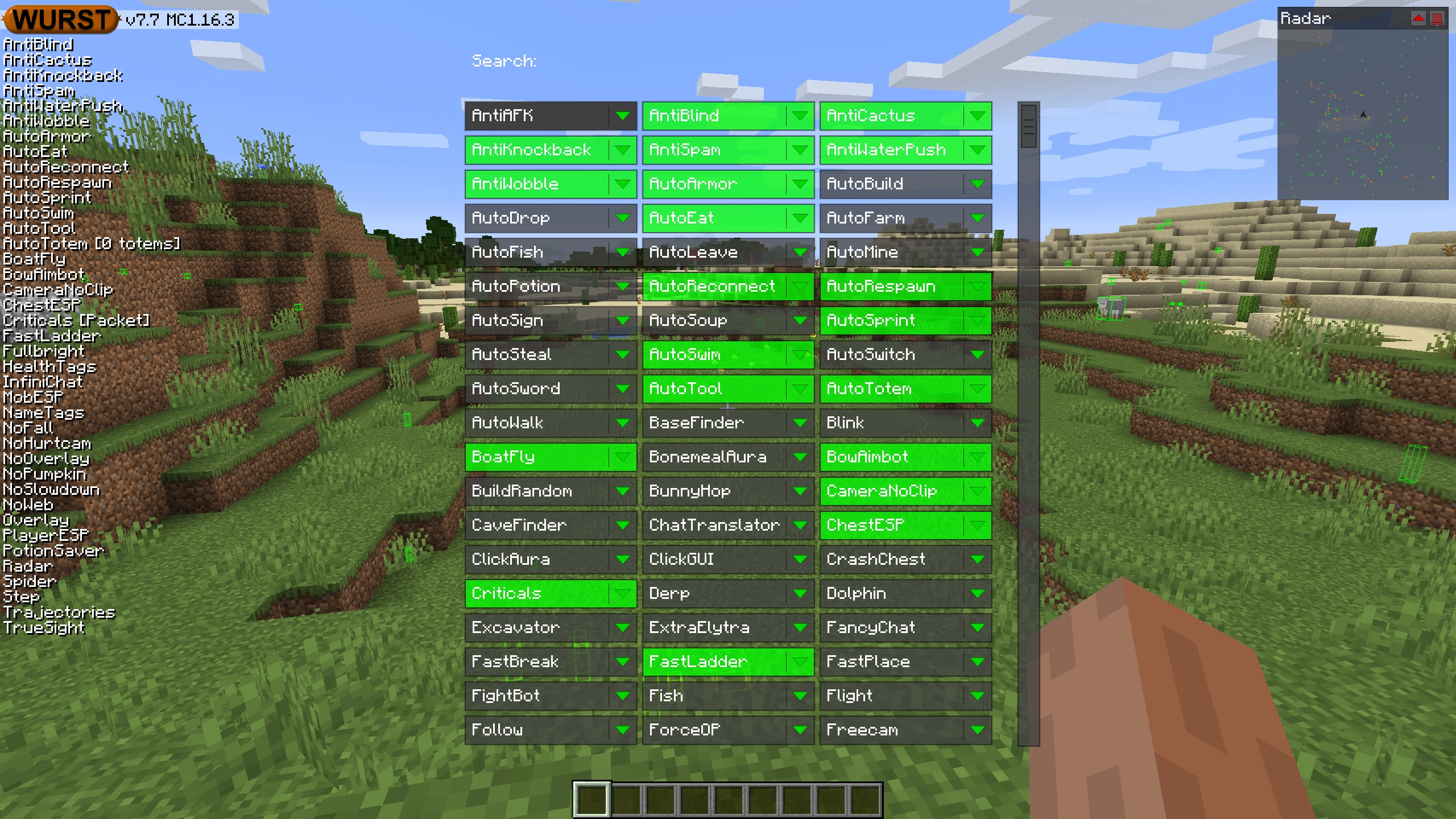
Navigator opens with the Right Shift key. When opened, it displays a searchable list of every feature in Wurst.
TabGUI
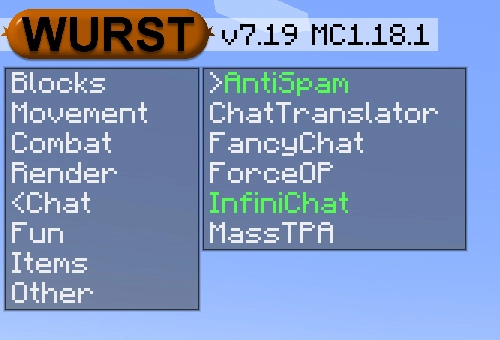
TabGUI does not have a default keybind. You can enable it by opening the Navigator GUI and searching for "TabGUI" (don't worry, you only need to do this once).
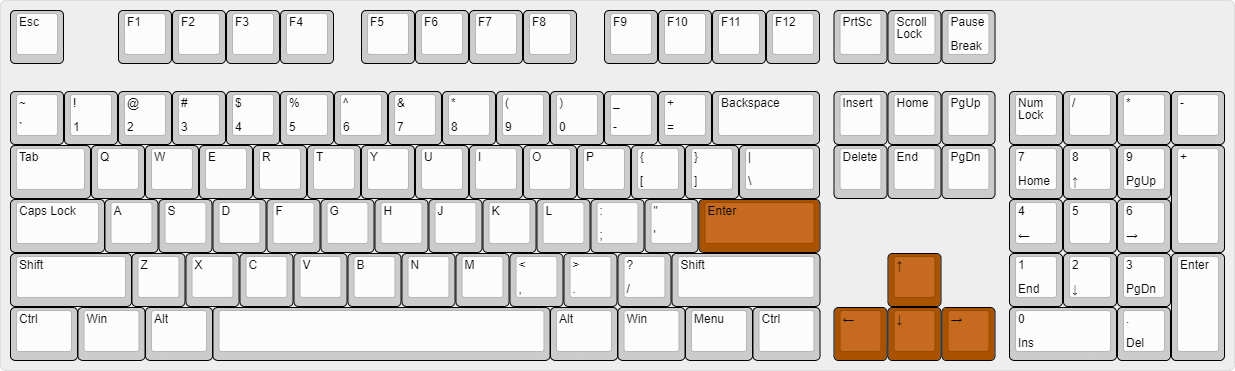
Once enabled, you can use TabGUI with the Arrow Keys to change the selection and Enter to toggle the selected feature.
Supported Languages (15)
Translations are unfinished and thus disabled by default. Go to Wurst Options → Translations to enable them.
- Chinese (Simplified/Mainland)
- Chinese (Traditional/Taiwan)
- Chinese (Cantonese/Hong Kong)
- Czech
- English (US)
- French
- German
- Italian
- Japanese
- Korean
- Polish
- Romanian
- Russian
- Turkish
- Ukrainian