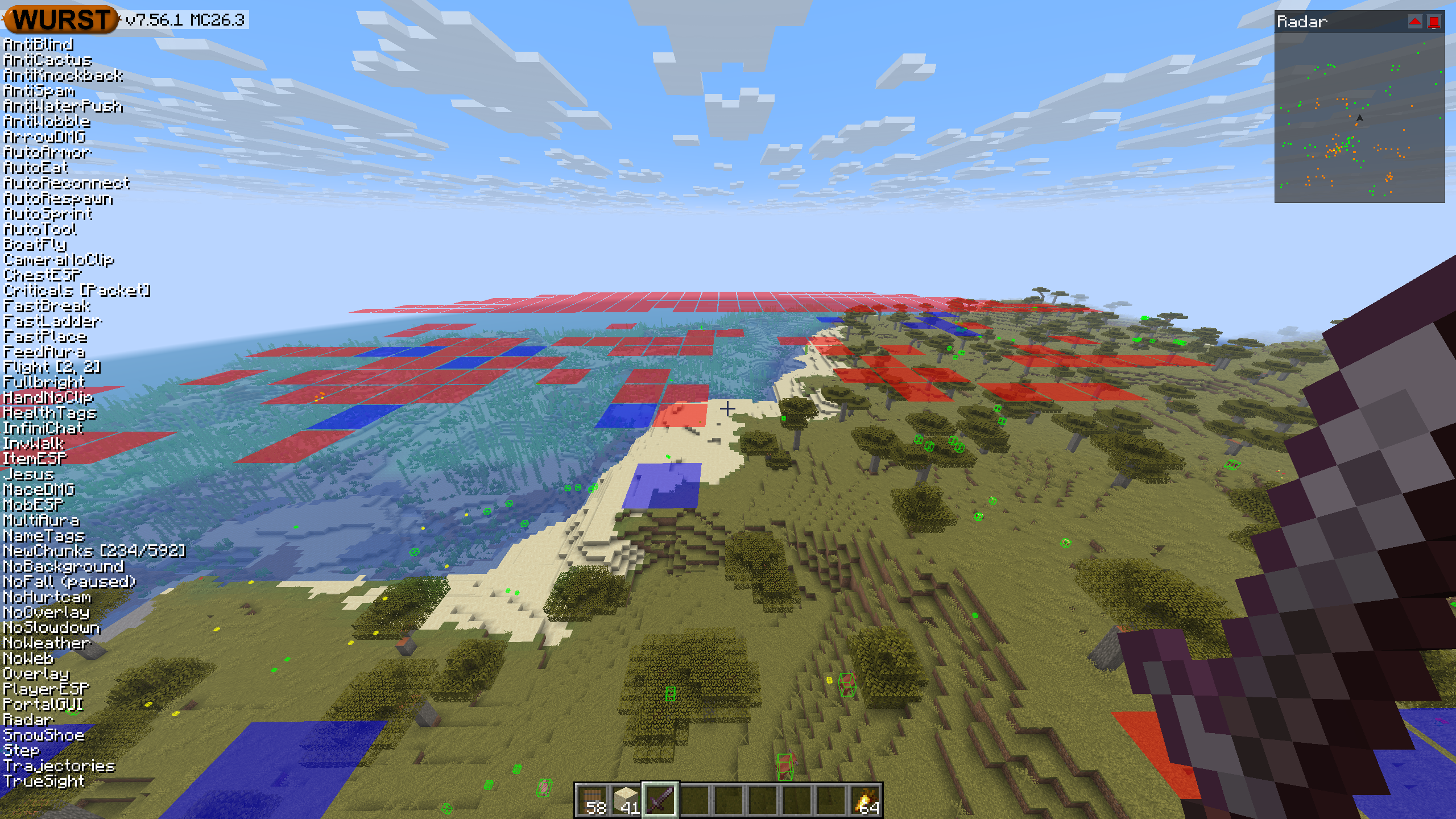
This version of the Wurst Hacked Client is available for Minecraft 26.3, 26.2, 26.1.2 and 1.21.11, as well as snapshot 26.4-snapshot-4.
Changelog
-
NewChunks can now also detect new chunks based on unused block/biome palette entries, making it much better at finding new chunks than before.
-
Improved the performance of NewChunks and fixed various timing issues with hard-to-describe effects.
-
Fixed NewChunks sometimes highlighting the wrong block when “Show reasons” is checked.
-
Fixed NewChunks missing the first few chunks after rejoining a world or changing dimensions and in some cases carrying over old chunk data from the previous world/dimension.
-
Fixed NewChunks misinterpreting chunk data packets for chunks outside your render distance as the (0, 0) chunk being completely empty, which could sometimes hide the actual state of that chunk depending on timing.
-
Fixed Jesus also affecting mobs in singleplayer. (#388)
-
Fixed NoSlowdown also affecting mobs in singleplayer.
-
Fixed HandNoClip affecting which blocks endermen can pick up in singleplayer.
-
Fixed NoWeather affecting farmland hydration and moon phase dependent mob spawns in singleplayer.
-
FeedAura and various combat auras no longer sometimes disable each other depending on the order they are enabled.
-
Removed the outdated warning when the “Twinkling Stars” pack from VanillaTweaks is installed, as the compatibility issue with that pack was fixed by Wurst 7.47’s rendering overhaul.
-
Fixed InfiniChat not working anymore (since Minecraft 22w42a / 1.19.3).
-
Fixed an edge case in NoTelemetry: Opening a world while NoTelemetry is turned off, then turning NoTelemetry on, and then closing the world now prevents the WorldUnloaded telemetry event from being sent as you would expect.
-
Fixed Minecraft’s own methods of turning off telemetry being ignored if NoTelemetry is turned off.
-
Fixed a block overlay appearing when you move the camera inside a block using Freecam or CameraNoClip, making you unable to see anything. (Minecraft 26.4-snapshot-4 only)
-
Fixed AutoSign again causing IMEs (input method editors, used for composing text in Chinese/Japanese/Korean) to stay open for users who have one. (Minecraft 26.4-snapshot-4 only)
-
Fixed TemplateTool’s “Choose a name for this template” screen not focusing the text field correctly anymore. (Minecraft 26.4-snapshot-4 only)
Included Features
Default Keybinds (14)
These are the default keybinds when you first install Wurst. All of them are fully customizable!
- B → FastPlace & FastBreak
- C → Fullbright
- G → Flight
- ; → SpeedNuker
- H → /home
- J → Jesus
- K → MultiAura
- N → Nuker
- R → Killaura
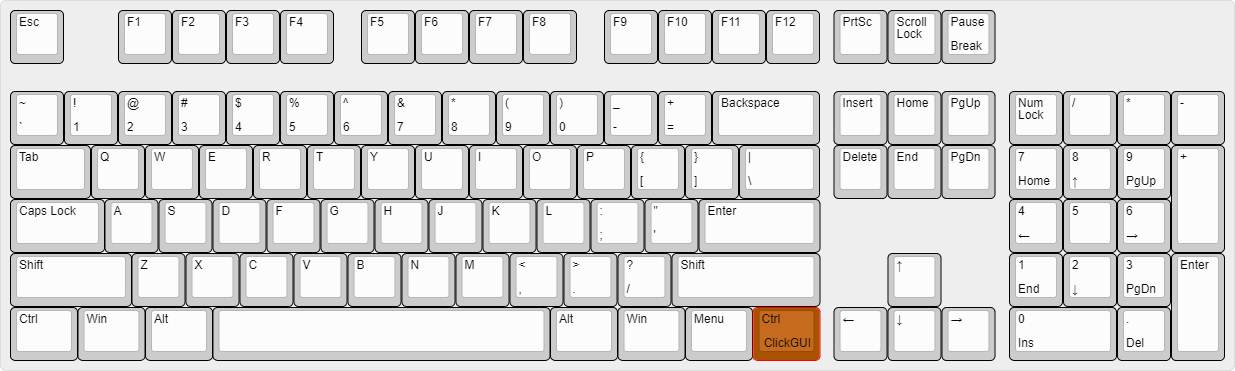
- Right CTRL → ClickGUI
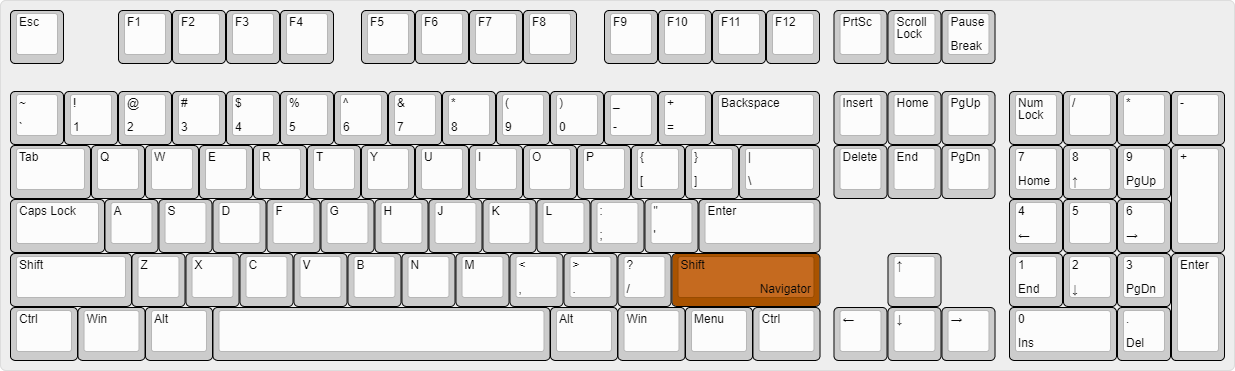
- Right SHIFT → Navigator
- U → Freecam
- X → X-Ray
- Y → Sneak
GUIs (3)
Wurst has more than just one GUI. You can choose whichever one you like best.
ClickGUI
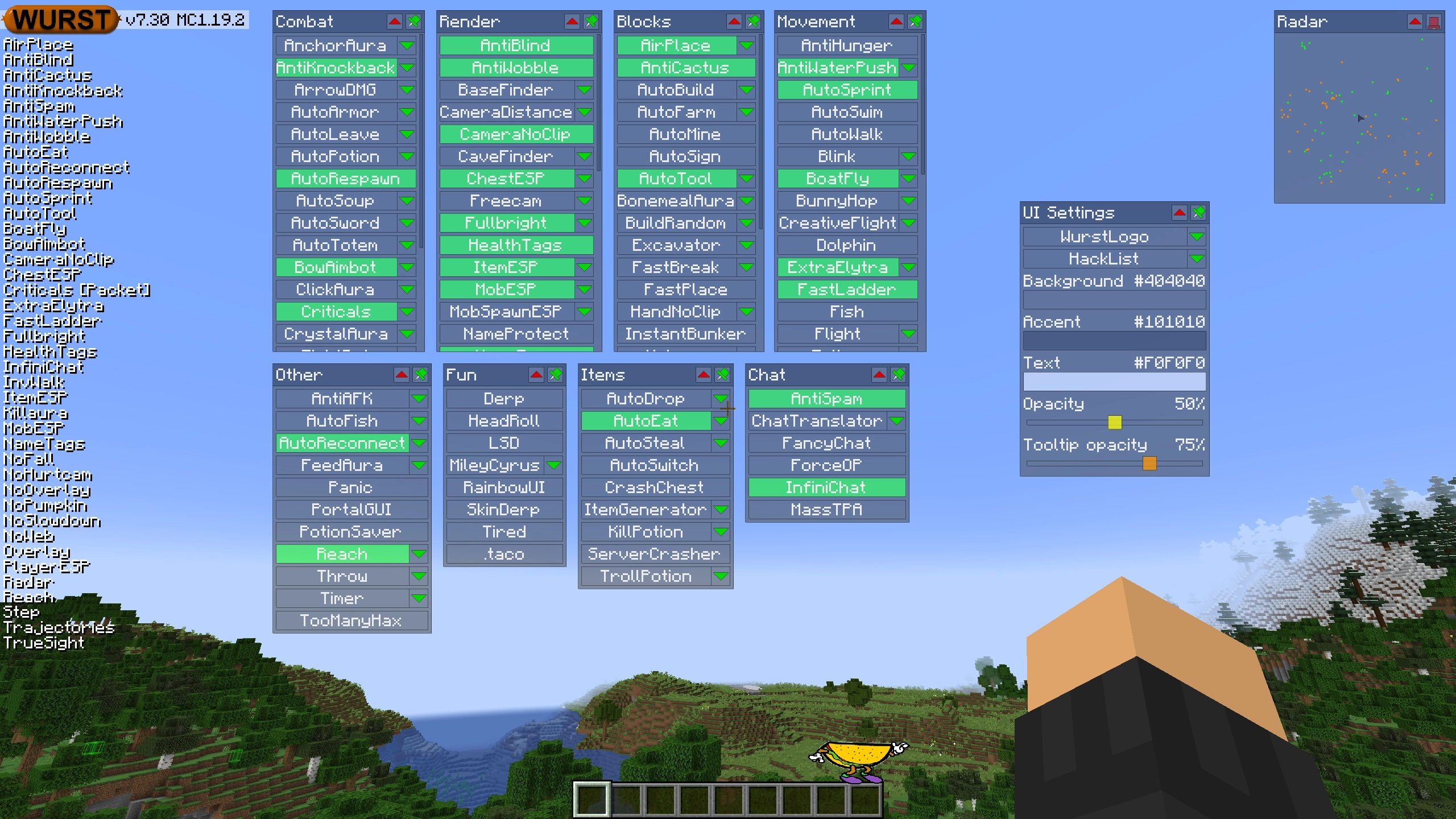
ClickGUI opens with the Right CTRL key. When opened, it displays a window for each category, which then contains a list of every feature in that category.
Navigator
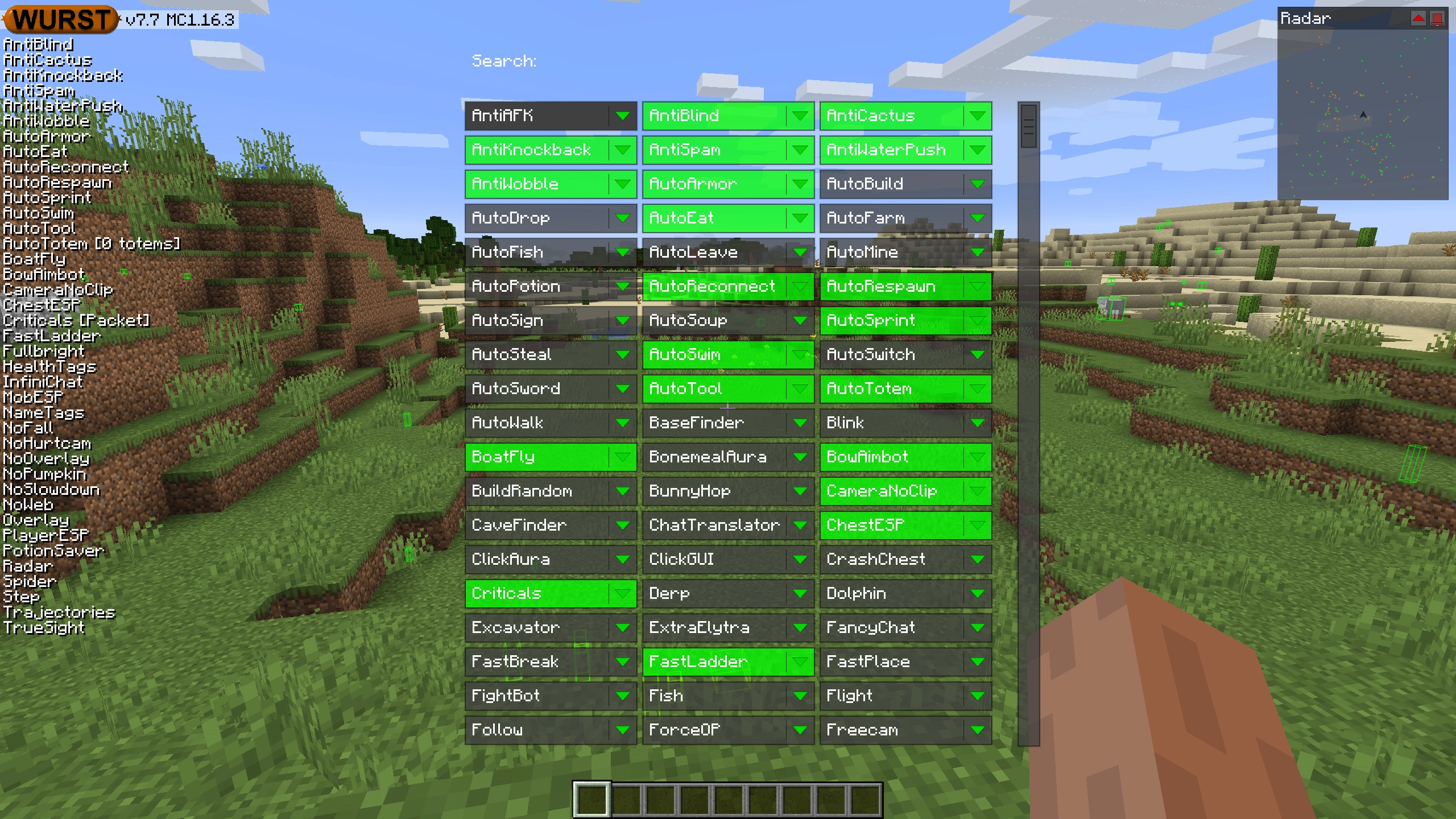
Navigator opens with the Right Shift key. When opened, it displays a searchable list of every feature in Wurst.
TabGUI
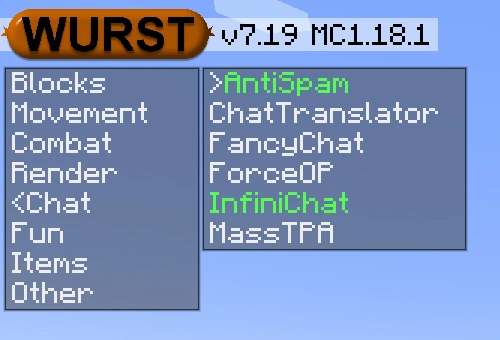
TabGUI does not have a default keybind. You can enable it by opening the Navigator GUI and searching for "TabGUI" (don't worry, you only need to do this once).
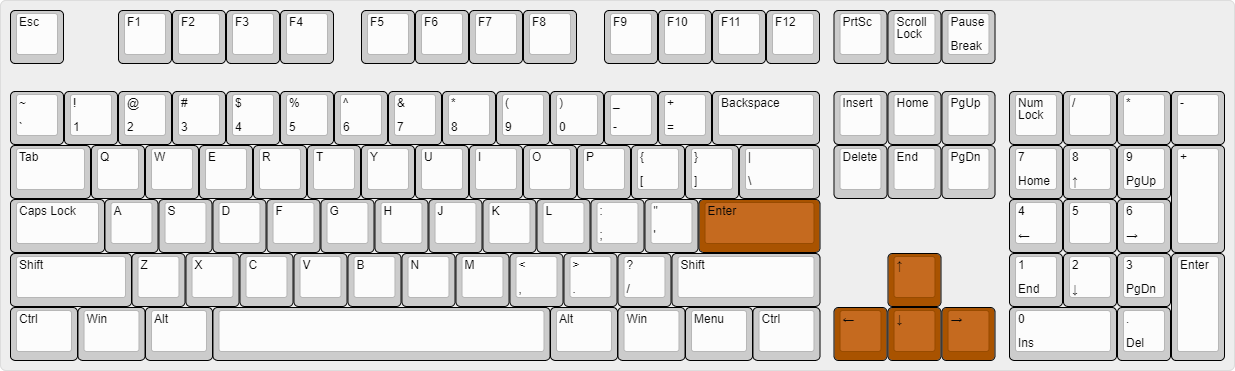
Once enabled, you can use TabGUI with the Arrow Keys to change the selection and Enter to toggle the selected feature.
Supported Languages (15)
Translations are unfinished and thus disabled by default. Go to Wurst Options → Translations to enable them.
- Chinese (Simplified/Mainland)
- Chinese (Traditional/Taiwan)
- Chinese (Cantonese/Hong Kong)
- Czech
- English (US)
- French
- German
- Italian
- Japanese
- Korean
- Polish
- Romanian
- Russian
- Turkish
- Ukrainian
 Fabric API
v0.162.0+26.3
Fabric API
v0.162.0+26.3