This version of the Wurst Hacked Client is available for Minecraft 26.2, 26.1.2 and 1.21.11, as well as snapshots 26.3-snapshot-9, 26.3-snapshot-8, 26.3-snapshot-7 and 26.3-snapshot-6.
Changelog
-
Fixed some chunks being invisible while you’re in Freecam with Sodium mc26.2-0.9.1-beta.3 or later installed (Minecraft 26.2 and later versions only).
-
Dropped support for Sodium versions older than mc26.2-0.9.1-beta.3 (Minecraft 26.2 and later versions only).
-
Fixed a bug that made it impossible to turn the camera while in Freecam if Shoulder Surfing Reloaded is installed. (#10 (WI Freecam), #78 (WI Freecam))
-
Fixed Blink & RemoteView no longer working in 26.2 (/d/1658, Minecraft 26.2 and later versions only).
-
Added a very basic smoke test for Blink so it won’t go unnoticed if it breaks like that again.
-
Fixed AutoFarm not harvesting sugar cane growing on grass blocks, podzol, mycelium, moss blocks, or mud. (/d/1661, Minecraft 26.1 and later versions only).
-
Fixed AutoFarm not replanting sweet berry bushes that were planted on grass blocks, podzol, mycelium, moss blocks, or mud. (Minecraft 26.1 and later versions only).
-
Improved AutoFarm compatibility with data packs that change valid planting surfaces. (Minecraft 26.1 and later versions only).
-
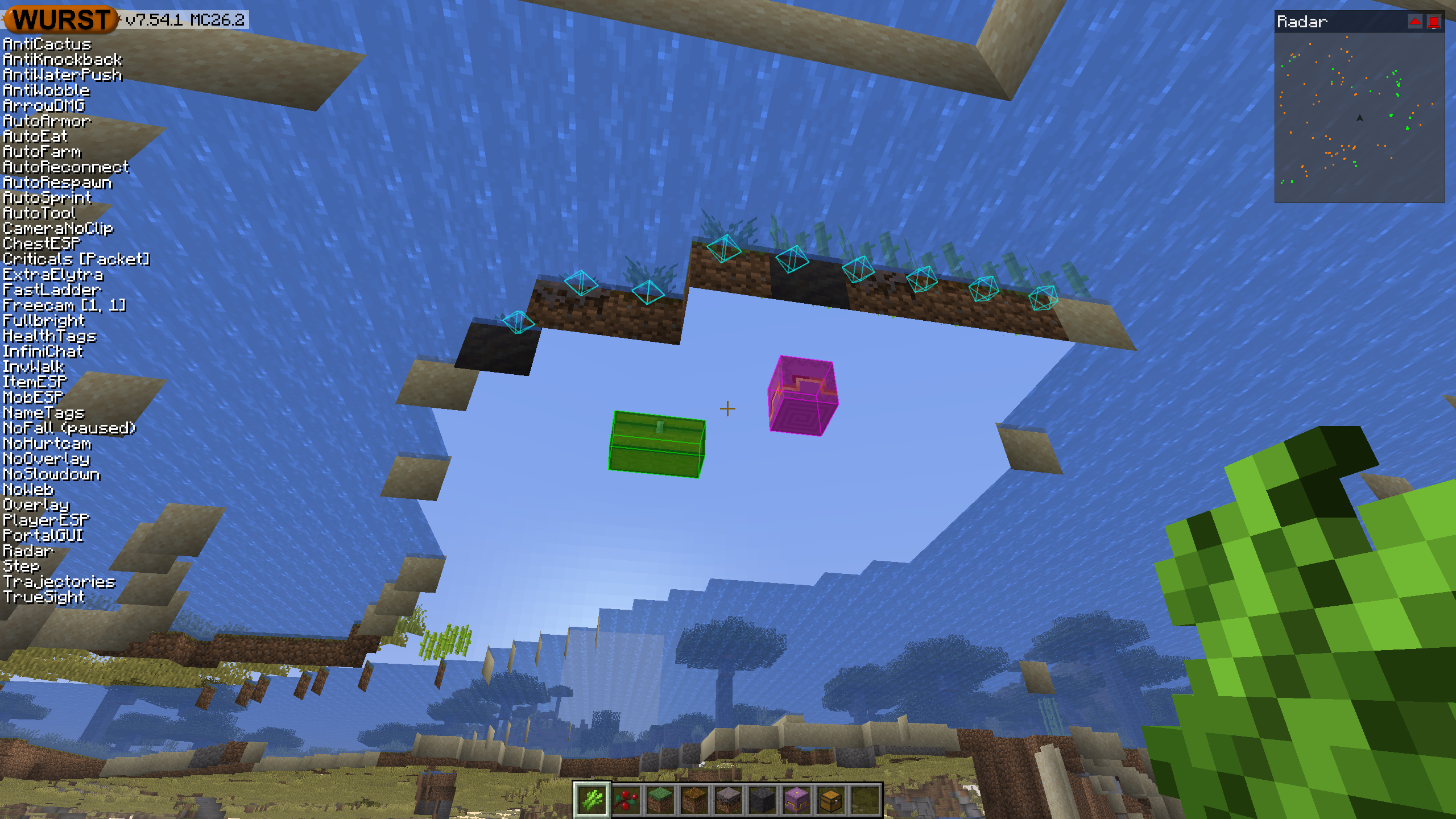
Fixed ChestESP no longer highlighting shulker boxes from the Lootr mod when “Include shulkers” is enabled.
-
Added two automated tests for ChestESP: One to ensure each group (e.g. shulker boxes) still matches the intended blocks after a Minecraft/Lootr update, and one to visually verify the ESP lines/boxes still render correctly.
-
Fixed ESP boxes (e.g. in ChestESP) appearing more opaque than they should be (Minecraft 26.2 and later versions only).
-
Split all of Wurst’s “Swing hand” settings into “Attack swing” for left-click swings and “Interact swing” for right-click swings, since Minecraft no longer treats these the same way (Minecraft 26.3-snapshot-7 and later versions only).
Included Features
Default Keybinds (14)
These are the default keybinds when you first install Wurst. All of them are fully customizable!
- B → FastPlace & FastBreak
- C → Fullbright
- G → Flight
- ; → SpeedNuker
- H → /home
- J → Jesus
- K → MultiAura
- N → Nuker
- R → Killaura
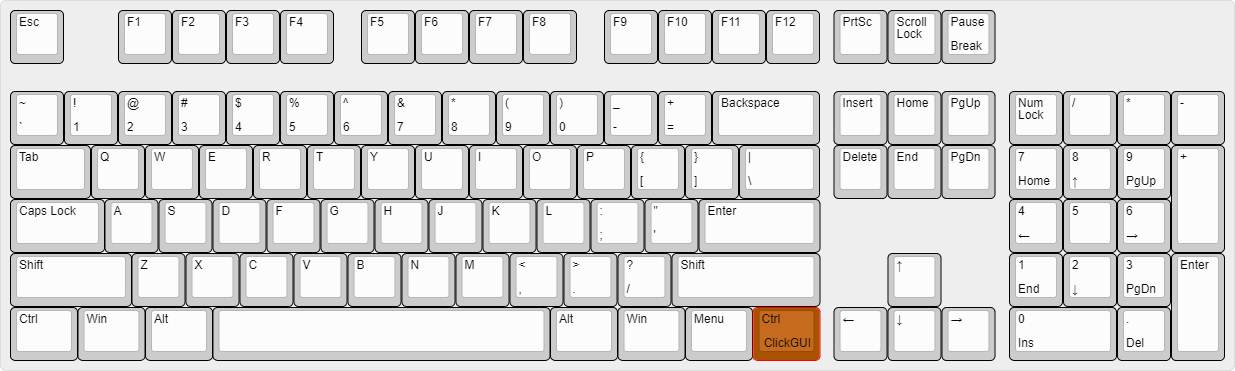
- Right CTRL → ClickGUI
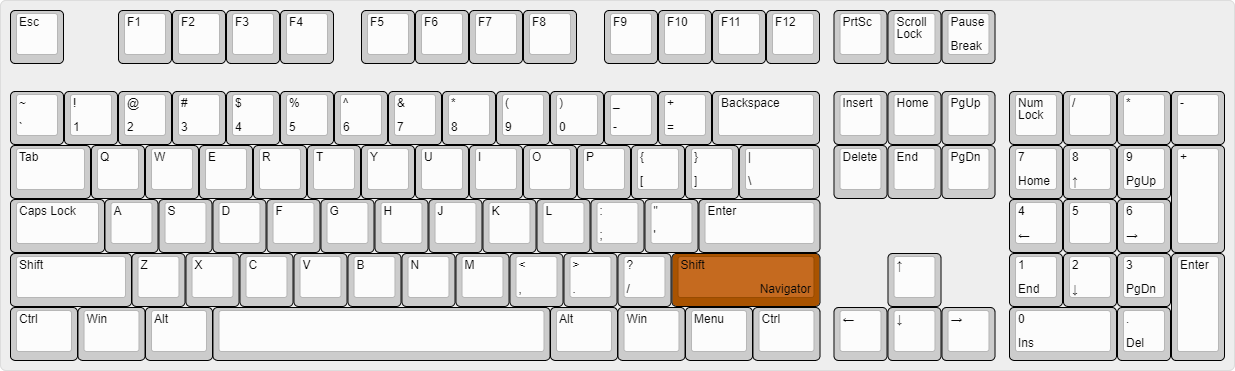
- Right SHIFT → Navigator
- U → Freecam
- X → X-Ray
- Y → Sneak
GUIs (3)
Wurst has more than just one GUI. You can choose whichever one you like best.
ClickGUI
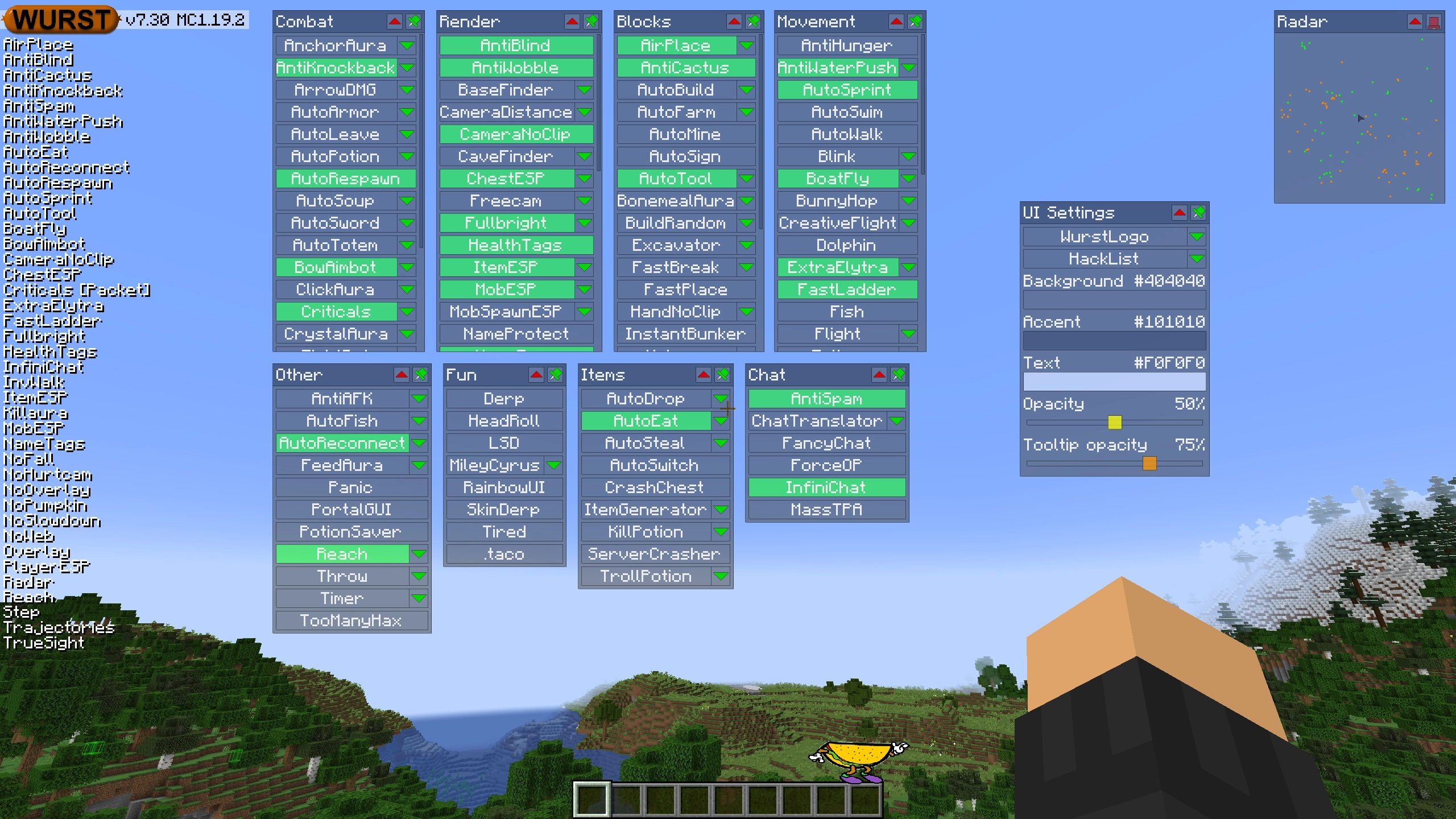
ClickGUI opens with the Right CTRL key. When opened, it displays a window for each category, which then contains a list of every feature in that category.
Navigator
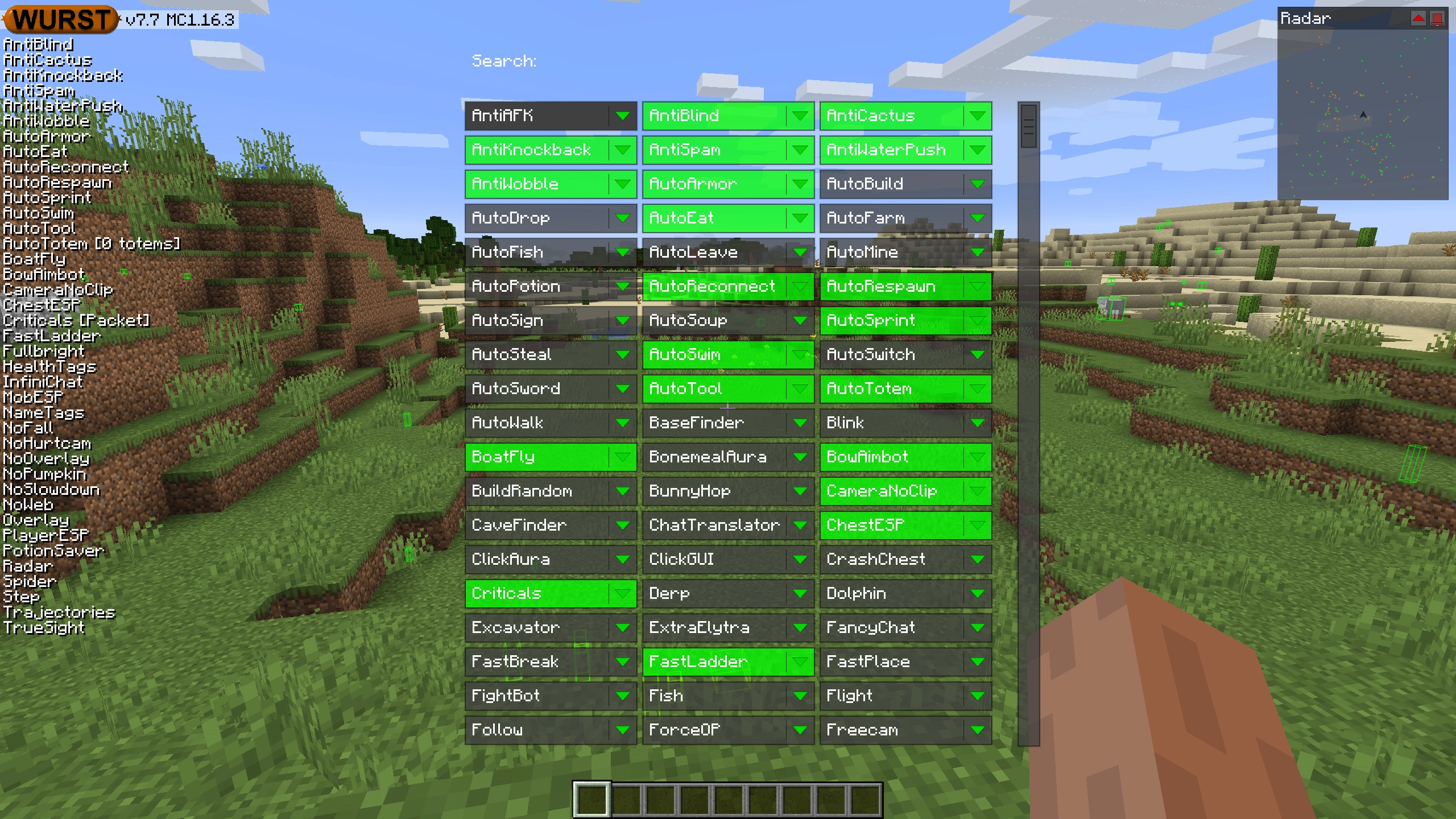
Navigator opens with the Right Shift key. When opened, it displays a searchable list of every feature in Wurst.
TabGUI
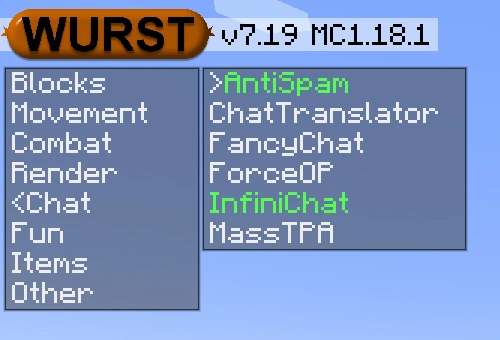
TabGUI does not have a default keybind. You can enable it by opening the Navigator GUI and searching for "TabGUI" (don't worry, you only need to do this once).
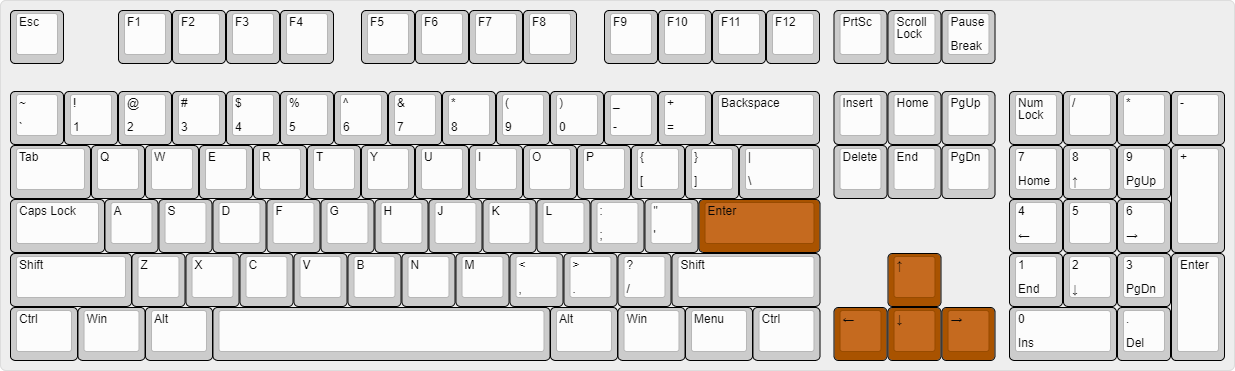
Once enabled, you can use TabGUI with the Arrow Keys to change the selection and Enter to toggle the selected feature.
Supported Languages (15)
Translations are unfinished and thus disabled by default. Go to Wurst Options → Translations to enable them.
- Chinese (Simplified/Mainland)
- Chinese (Traditional/Taiwan)
- Chinese (Cantonese/Hong Kong)
- Czech
- English (US)
- French
- German
- Italian
- Japanese
- Korean
- Polish
- Romanian
- Russian
- Turkish
- Ukrainian
 Fabric API
v0.156.0+26.2
Fabric API
v0.156.0+26.2