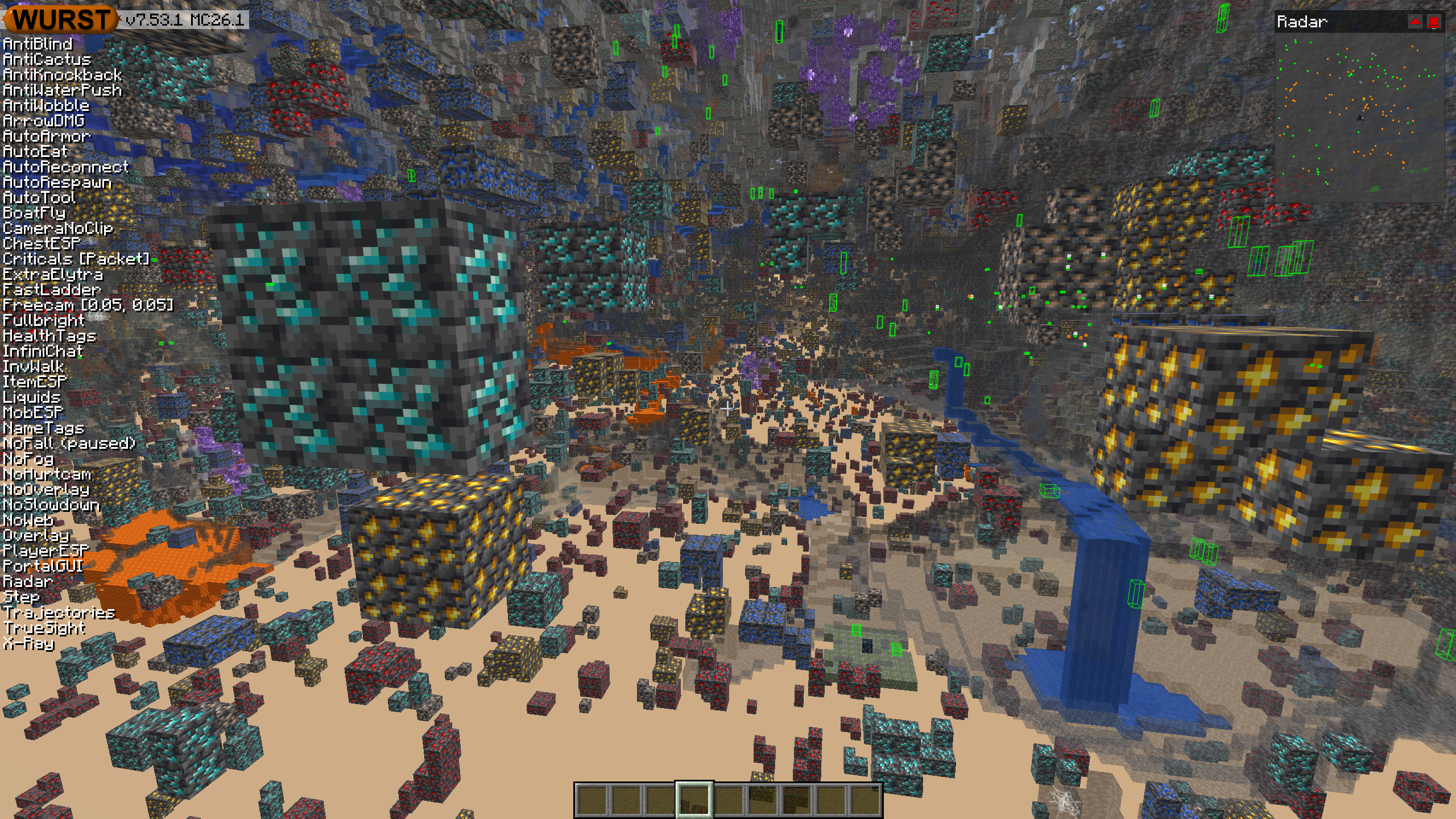
This version of the Wurst Hacked Client is available for Minecraft 26.1 and 1.21.11.
Changelog
-
Updated X-Ray to work with Sodium 0.8.7 (Minecraft 26.1).
-
Updated X-Ray to work with Sodium 0.8.7 while keeping backwards compatibility with Sodium 0.8.6 (Minecraft 1.21.11). (#1320)
-
(Still waiting for FRAPI, no X-Ray changes there.)
-
Fixed Navigator’s “New Keybind” screen still not accepting mouse buttons for keybinds.
-
Fixed Navigator’s “New Keybind” screen still not displaying keys the same way as in Minecraft’s controls menu.
-
Fixed various entity range checks in Wurst not matching how Minecraft itself would calculate them. (/d/1547)
-
Fixed AntiWaterPush not working in Minecraft 26.1.
Included Features
Default Keybinds (14)
These are the default keybinds when you first install Wurst. All of them are fully customizable!
- B → FastPlace & FastBreak
- C → Fullbright
- G → Flight
- ; → SpeedNuker
- H → /home
- J → Jesus
- K → MultiAura
- N → Nuker
- R → Killaura
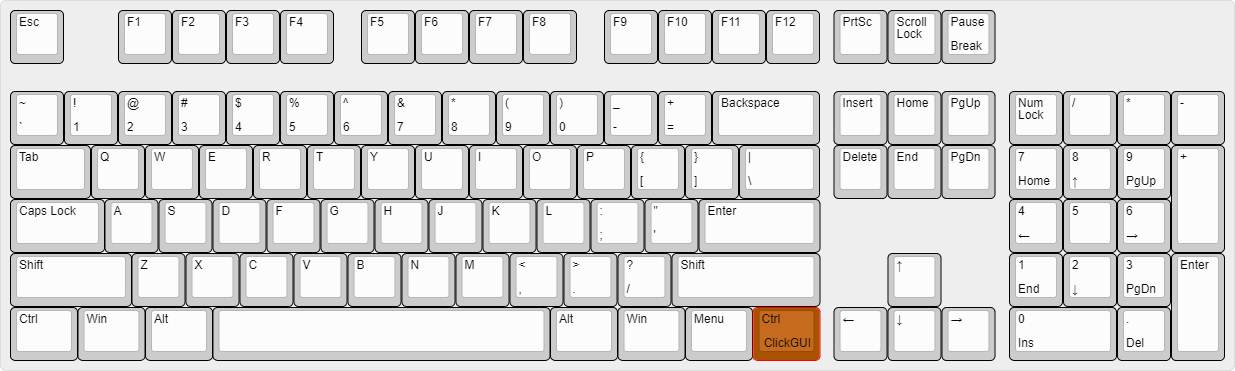
- Right CTRL → ClickGUI
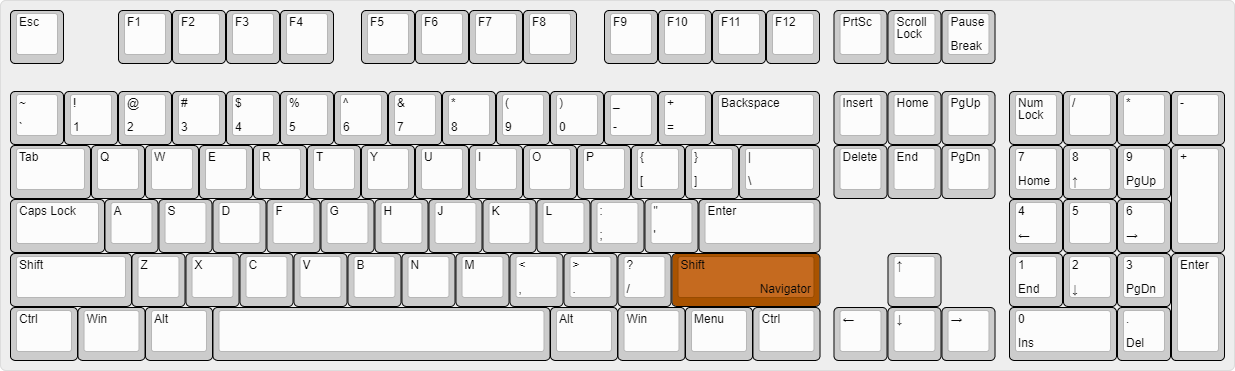
- Right SHIFT → Navigator
- U → Freecam
- X → X-Ray
- Y → Sneak
GUIs (3)
Wurst has more than just one GUI. You can choose whichever one you like best.
ClickGUI
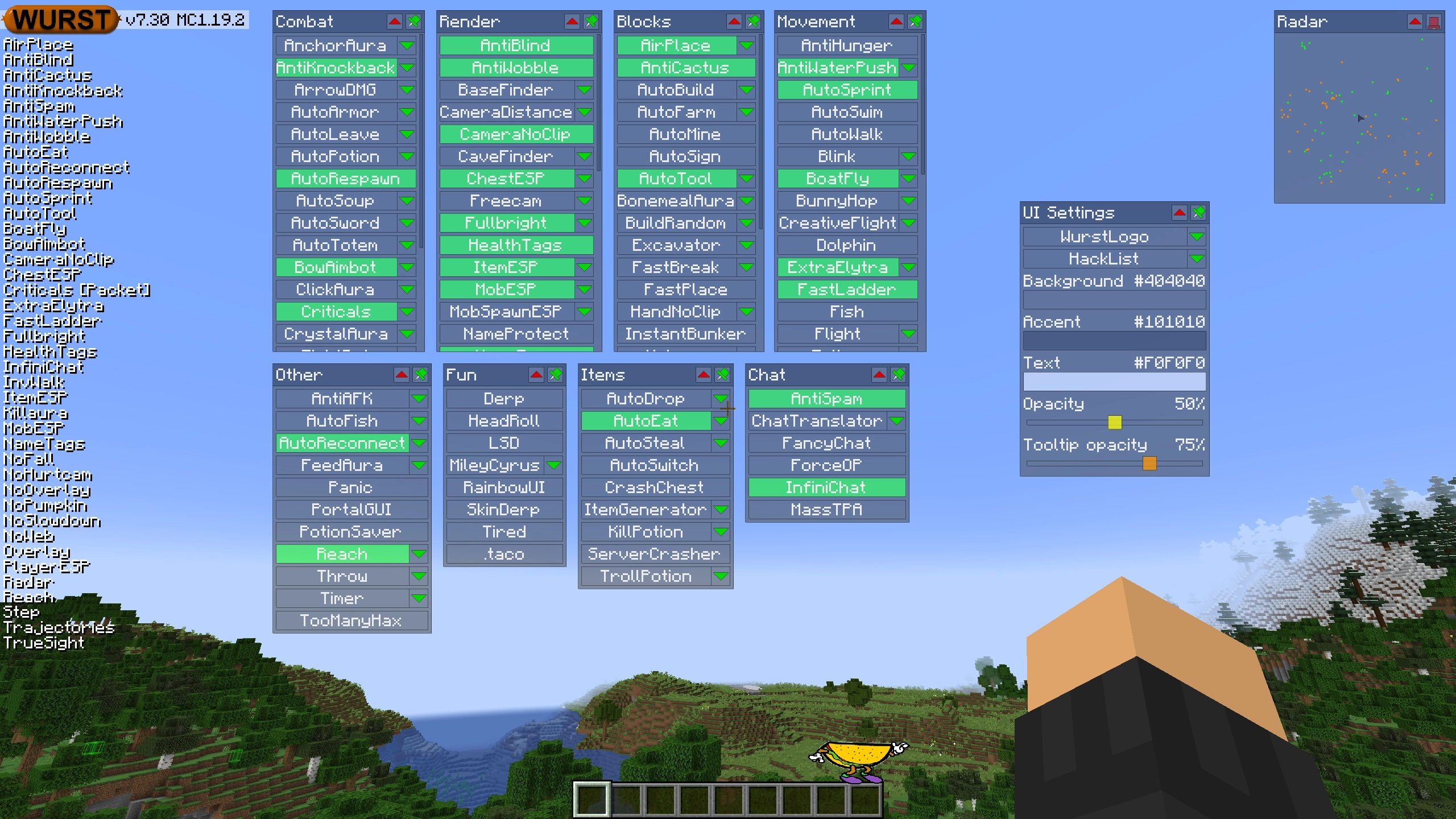
ClickGUI opens with the Right CTRL key. When opened, it displays a window for each category, which then contains a list of every feature in that category.
Navigator
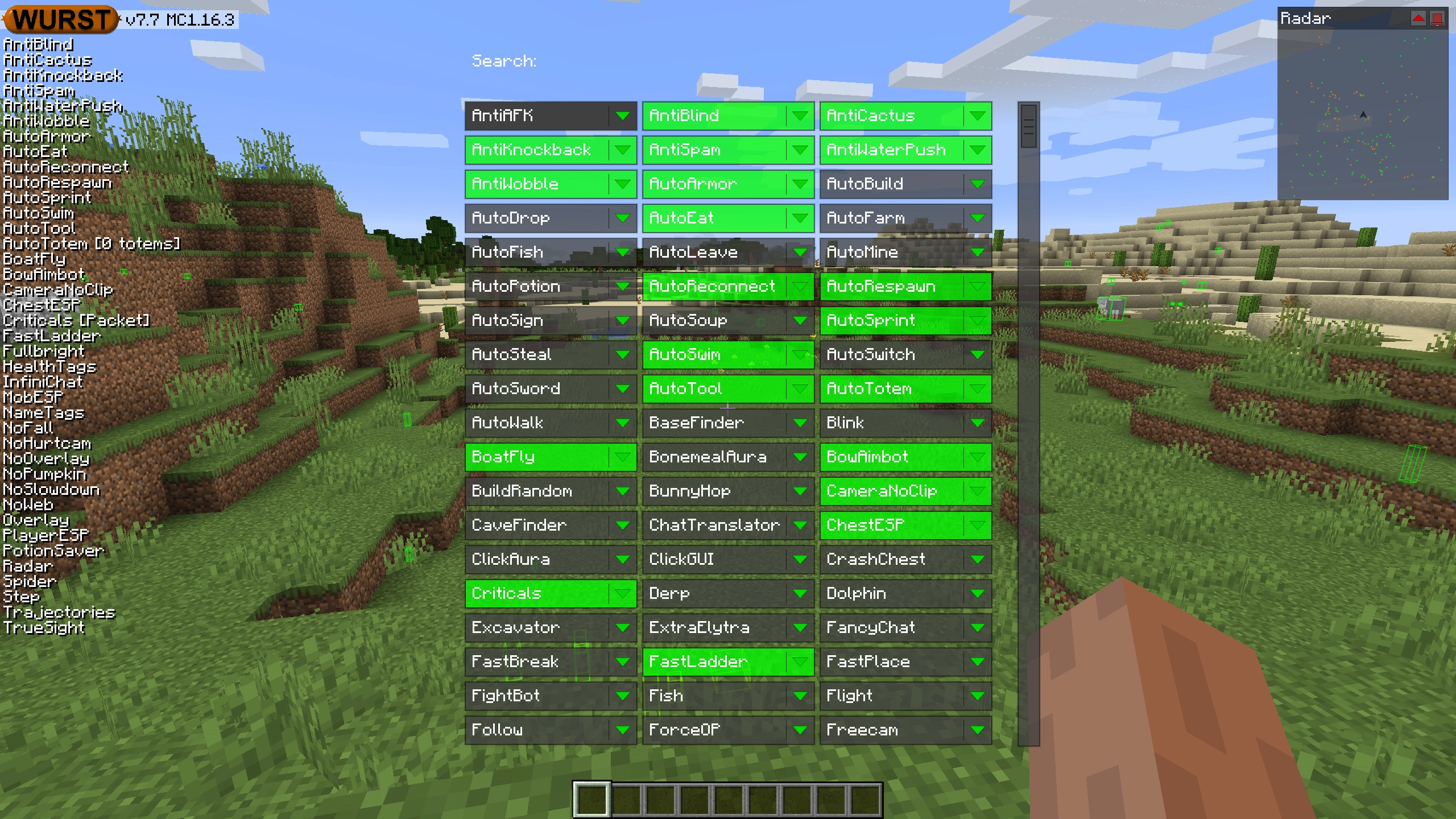
Navigator opens with the Right Shift key. When opened, it displays a searchable list of every feature in Wurst.
TabGUI
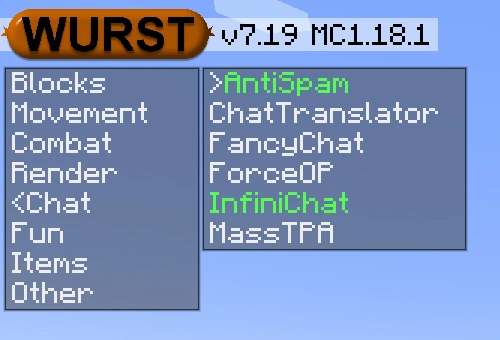
TabGUI does not have a default keybind. You can enable it by opening the Navigator GUI and searching for "TabGUI" (don't worry, you only need to do this once).
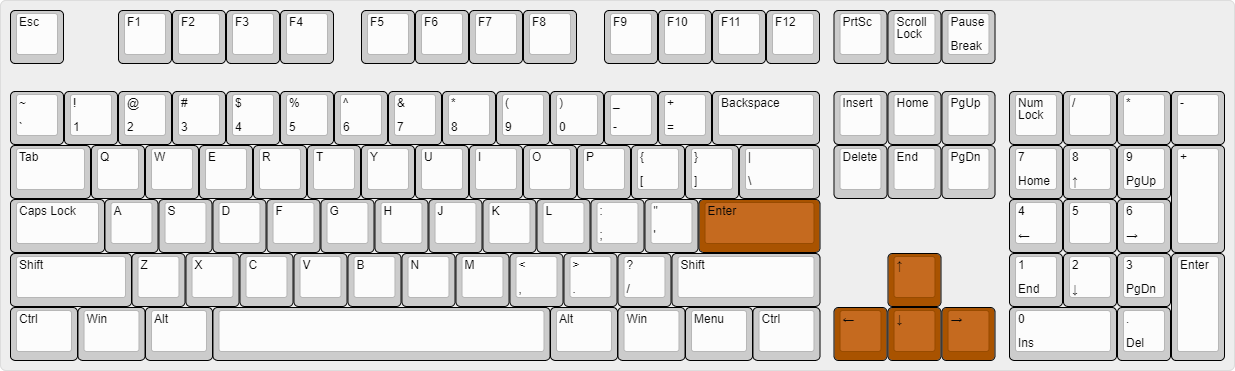
Once enabled, you can use TabGUI with the Arrow Keys to change the selection and Enter to toggle the selected feature.
Supported Languages (15)
Translations are unfinished and thus disabled by default. Go to Wurst Options → Translations to enable them.
- Chinese (Simplified/Mainland)
- Chinese (Traditional/Taiwan)
- Chinese (Cantonese/Hong Kong)
- Czech
- English (US)
- French
- German
- Italian
- Japanese
- Korean
- Polish
- Romanian
- Russian
- Turkish
- Ukrainian
 Fabric API
v0.144.3+26.1
Fabric API
v0.144.3+26.1